The messaging system of Aix-Marseille University is based on a centralized authentication portal accessible via mail.univ-amu.fr. Students, doctoral candidates, and staff all use this single entry point to check their messages. The daily question is not so much the initial login but the ability to receive AMU emails on a personal phone or inbox without losing institutional communications.
Forwarding and synchronizing AMU email to personal inbox
Most competing guides only describe the login page. The real issue for regular users lies elsewhere: how to keep the institutional address active while reading messages from Gmail, personal Outlook, or the mail app on an iPhone.
AMU directs its users to Outlook as the main messaging interface. The university provides video tutorials on AMUpod to explain access and the Outlook interface, confirming that AMU messaging operates within the Microsoft 365 ecosystem.
There are two options to centralize the reception of emails:
- Set up automatic forwarding from the Outlook web settings to a personal address. This method ensures real-time reception, but forwarded messages do not always remain in the AMU inbox depending on the chosen configuration.
- Add the AMU account as a secondary account in a mobile application (Outlook, Gmail, Apple Mail) via IMAP/SMTP protocols. Messages remain synchronized on the AMU server and accessible from multiple devices.
- Use the mobile Outlook app with AMU credentials. This is the most consistent solution with the university’s infrastructure and poses the least compatibility issues.
A comprehensive guide for accessing AMU email details the steps for logging into the webmail and the various interfaces available.
Comparison of methods for accessing AMU webmail

Not all methods are equal in terms of practicality and reliability. The table below summarizes the differences between each approach.
| Access Method | Device | Synchronization | Real-time Notifications | Main Limitation |
|---|---|---|---|---|
| Webmail mail.univ-amu.fr | Browser (PC, mobile) | Yes (online) | No (open tab required) | No push notifications |
| Mobile Outlook app | iOS, Android | Yes (push) | Yes | Requires active AMU credentials |
| IMAP Client (Gmail, Apple Mail) | Any device | Yes (variable interval) | Depends on the client | Manual server configuration |
| Forwarding to personal inbox | No specific device | No (copy only) | Yes (via target inbox) | Messages sometimes absent from AMU inbox |
Webmail via browser remains the most direct method, but it is not suitable for users who want alerts on their phones. In contrast, the mobile Outlook app offers the best integration with AMU infrastructure and push notifications.
The IMAP configuration works on most email clients. It requires manually entering server settings, which can deter less tech-savvy users.
Account activation and ENT credentials for AMU messaging
Before being able to check their messages, each user must activate their account via the Sesame platform (sesame.univ-amu.fr). This preliminary step applies to both students and contractual doctoral candidates.
The identifier consists of the first letter of the last name followed by the student number, as it appears on the enrollment certificate. The initial password is also listed on this document. Sesame then allows users to modify this password and reset it in case of loss.
A specific point for doctoral candidates: those with a doctoral contract receive two distinct addresses. One in @univ-amu.fr (personal), the other in @etu.univ-amu.fr (student). Both addresses must be activated separately, and the doctoral school exclusively uses the student address for its communications.
This distinction creates a frequent source of confusion. A doctoral candidate who only checks their @univ-amu.fr inbox may miss administrative messages sent to the @etu.univ-amu.fr address. Forwarding one to the other then becomes a practical necessity.
Security and logout on AMU email
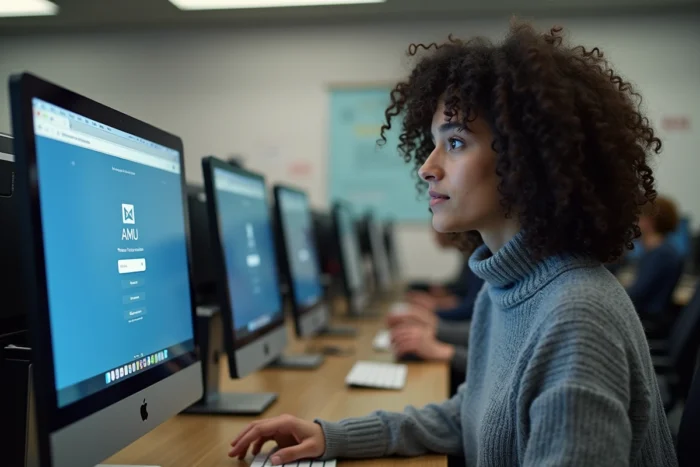
The centralized authentication page displays an explicit warning: log out and close the browser after each session. This reminder is not trivial. On a shared workstation in the university library or computer room, an open session exposes the email inbox and all ENT services linked to the same account.
The centralized authentication system (CAS) used by AMU shares the session across multiple services. Logging into the webmail also grants access to the ENT, educational registrations, and the university’s digital tools. Closing the webmail tab is not enough: you must click the logout link and then exit the browser.
On a personal device, the risk is lower. The mobile Outlook app manages the session in isolation and can be protected by a code or the phone’s biometrics. This is an additional argument in favor of the native app over the mobile browser.
Support resources within Aix-Marseille University
AMU provides an ecosystem of documentation spread across several structures. Video tutorials on AMUpod cover the Outlook interface. The faculties publish their own guides. Technical structures like the I2M computer network document connection settings for both browser and email client.
No single portal centralizes all documentation on messaging. To find an answer to a connection issue, it often requires combining the help page of DIRNUM (Digital Direction) with resources specific to one’s component.
The AMU email address remains active as long as the administrative registration is valid. A student who does not re-enroll loses access to their inbox, including archived messages. Remembering to export exchanges before the end of their course prevents losing correspondence with teachers or administrative services.